Every event promoter eventually encounters a situation where their event organizing and event management is not going as planned. For those that may have to postpone an event to a new date or cancel it outright, Ticketscene gives you the tools to manage this directly from your account while keeping your attendees informed.
How to Change Your Event Status is Easy
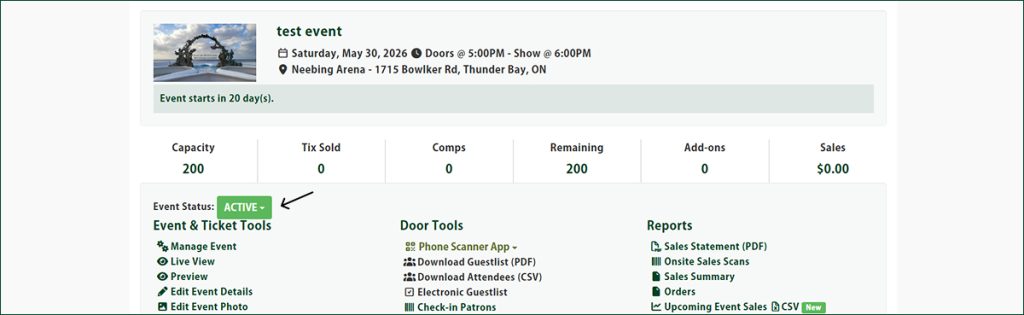
From the event management page, click the Event Status button located just above the “Event & Ticket Tools” column. This is where you can update your event to Postponed or Cancelled.
*Please note that, when changing to either status, email info@ticketscene.ca and let the team know how you would like to communicate with your attendees.
Your Event is Active
When you publish your event, your event status will show as active meaning that your event is live on ticketscene.ca.
Saving an Event as a ‘Draft’
Still working on the details of your event and fine-tuning your event listing? Save your event as a draft until you are ready to publish.
Postponing Your Event
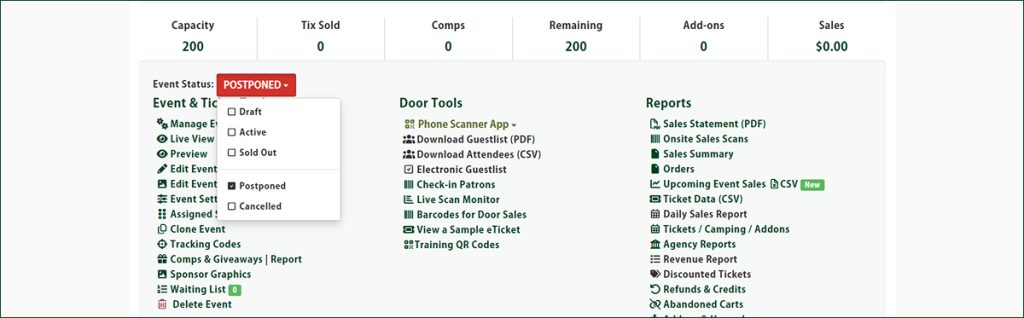
When you set your event to postponed, send the new event details to info@ticketscene.ca as soon as they are available.
When an event is postponed, tickets already sold will be automatically transferred to the new event date and time. Once you have the new date selected, you will not have to re-enter any event details when you postpone as the same event listing is used on Ticketscene.
Ticketscene can email your attendees with the updated event information on your behalf, once it’s confirmed on your part.
*After you have a new date, your email to info@ticketscene.ca should also include how you plan to handle refunds for attendees who are unable to make the new date.
What most event promoters do with a postponed event is to instruct any patrons who cannot attend the postponed event date to email Ticketscene directly to request a refund. Attendees typically have up to 72 hours prior to the new event date to request a refund if the new date does not work for them.
Cancelling Your Event
When cancelling an event, there are service fees to consider and two options for how service fees on refunds are handled.
If you choose to absorb the service fees for your attendees, Ticketscene will invoice you for the refunded fees. Alternatively, if you do not wish to absorb the service fees as the promoter, include that in your message to Ticketscene and refunds will be processed for your attendees minus the service fees collected.
What Your Attendees Can Expect When an Event is Cancelled or Postponed
When an event is cancelled or postponed, Ticketscene will attempt to contact ticket buyers by email with instructions on refund or exchange procedures. Please reach out to Ticketscene if there are additional details you wish to share with your ticket buyers in this contact email.
For refunds, Ticketscene will issue the credit back to the credit card used at the time of purchase.
*Please note that service fees are non-refundable. Only the face value of the ticket will be refunded.
How to Delete an Event
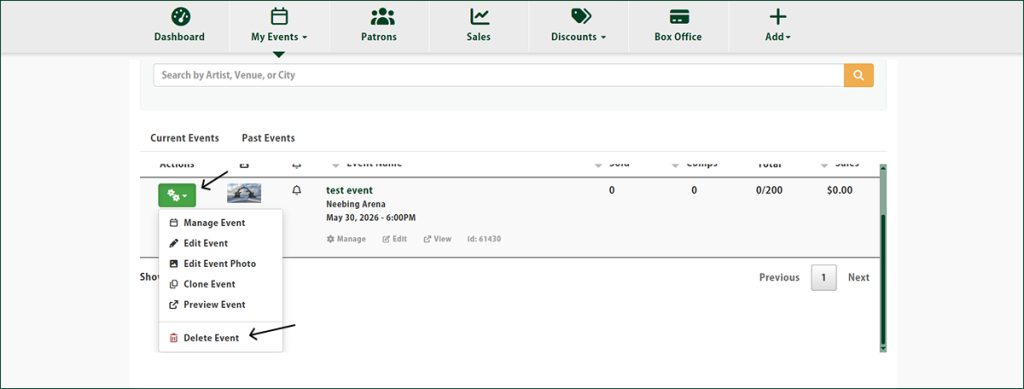
If you have not yet sold any tickets to an event and you simply want the event removed completely from any and all listings as well as your account, instead of going to postpone or cancel, you can delete the event.
To delete an event, go to your Manage Events page and click the green box with gears to the left of the event. At the bottom of the list, click the Delete option.
*Please note that deleting an event is only possible if no tickets have been sold.
Have Questions About Postponing, Cancelling, or Deleting an Event?
If you need any help navigating a postponement or cancellation, or have questions or accommodations you want made with relation to your patrons, reach out to the Ticketscene team at info@ticketscene.ca for further assistance.