When you’ve got more than one act on the bill, whether it’s a showcase, a battle of the bands, or a full festival lineup, it can be hard to know who’s actually driving your ticket sales. Ticketscene’s Artist Tracking feature solves that by letting ticket buyers select which artist, band, or performer they’re coming to support at checkout. From there, each act can see exactly how many tickets are attributed to them, and you get a clearer picture of your event as a whole.
Why Enable Artist Tracking
There are a few good reasons to turn on Artist Tracking for any event with multiple acts:
- It shows you exactly who is drawing ticket sales, not just how many tickets sold overall
- It gives performers a reason to actively promote the event, since they can see their own numbers
- It helps you make informed decisions about set times, billing order, and future bookings
- It can support conversations around revenue splits or guarantees based on real sales data
- It builds a bit of friendly competition between acts, which often translates into more promotion
How to Enable Artist Tracking for My Event is Easy
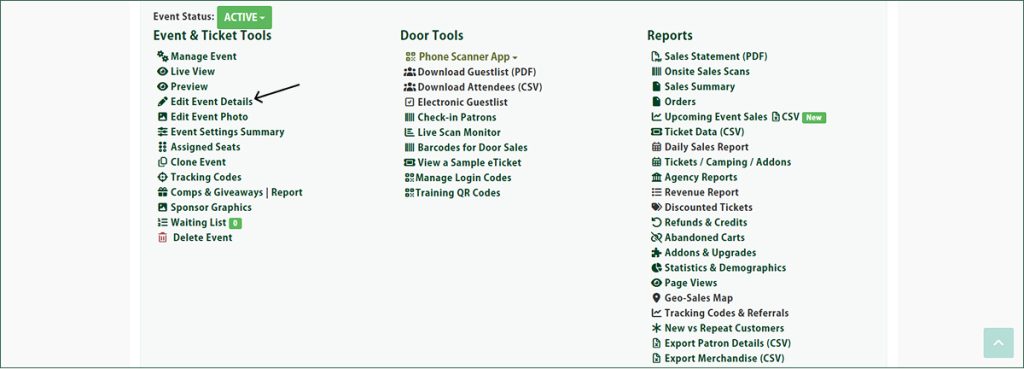
From your event management page, go to Edit Event Details and scroll to the Artist Tracking section.
Check the box for Yes, Enable Artist Tracking.
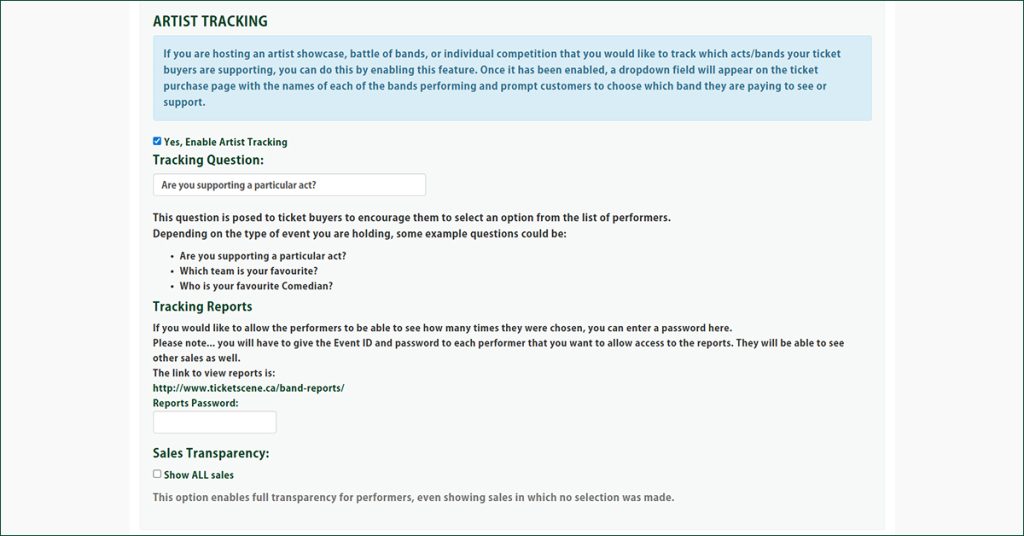
Once enabled, a dropdown field will appear on the ticket purchase page listing each of your performing acts, and it will prompt ticket buyers to choose which one they’re paying to see or support.
Writing a Good Tracking Question
Once Artist Tracking is enabled, you’ll be prompted to write a tracking question. This is what’s posed to ticket buyers to encourage them to select an option from your list of performers. The right wording will depend on your event, but a few examples include:
- Are you supporting a particular act?
- Which team is your favourite?
- Who is your favourite comedian?
The ticket buyer’s response is then registered in Ticketscene’s system and counted toward that performer’s tally.
How Do Artists View Their Tracking Reports?
If you’d like to let your performers see how many times they were selected, you can set a Reports Password in this same section.

To give a performer access, provide them with the Event ID and the reports password. They can then sign in at ticketscene.ca/band-reports/ to view their tracking analytics. Keep in mind that anyone you give this password to will be able to see the reports, so only share it with the performers you want to have access.
What Is Sales Transparency?
Underneath your Tracking Reports settings, you’ll also find a Show ALL Sales checkbox.

Enabling this gives performers full transparency, meaning they’ll be able to see all of your event’s sales, including ones where a ticket buyer didn’t select an act at all. This is worth thinking about before you enable it, since it goes beyond just showing an artist their own numbers.
How You Can Use This Data as a Promoter
The real value of Artist Tracking comes from what you do with the data once it starts rolling in. A few ways promoters put it to use:
- Deciding who to book again, and who deserves a higher spot on the bill next time
- Backing up revenue splits or guarantees with real numbers instead of guesswork
- Spotting which acts share an audience, which can help you build stronger lineups down the road
- Focusing your marketing budget on the acts and channels that are actually converting to sales
- Recognizing your top-selling performers, which can go a long way in strengthening those relationships
Used well, Artist Tracking turns a simple dropdown question into a genuine planning tool, helping you build stronger lineups and better relationships with the performers who help sell your event.
Have Questions About Artist Tracking?
If you need a hand setting up Artist Tracking, wording your tracking question, or granting access to your performers, reach out to the Ticketscene team at info@ticketscene.ca and we will be happy to help.